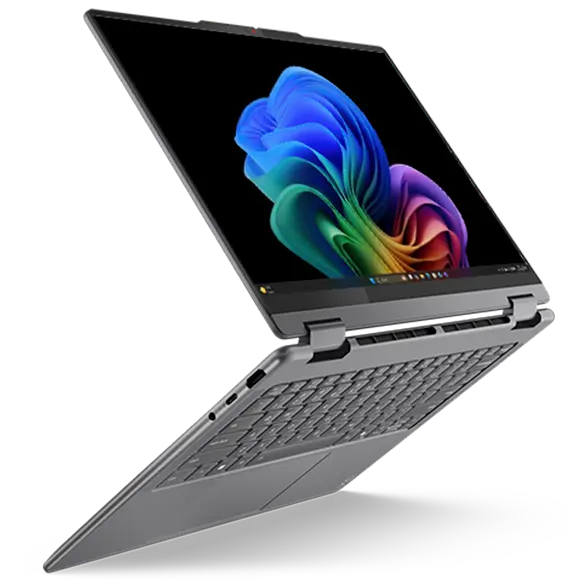
For a teacher who moves between classrooms, the Lenovo Yoga 7i 2-in-1 Gen 10 (14-inch Intel, model 14ILL10) is my first choice for a mixed timetable. Plug the room’s HDMI lead directly into the laptop, leave a USB-A presentation remote connected, and fold the screen back when a lesson calls for handwriting. Its main buying detail is easy to miss: Lenovo sells configurations both with and without a pen. Check the exact part number before pricing the kit.
Two alternatives earn their place for different lessons. A ThinkPad L13 2-in-1 with its optional integrated pen is particularly convenient for a substitute who packs up after every period. A 13-inch Surface Pro makes more sense for someone who regularly detaches the keyboard and carries a worksheet from desk to desk. The decision starts with what happens between the last slide in one room and the first slide in the next.
Three classroom setups, compared
| Convertible | What connects at the lectern | Where it earns its place | What to check |
|---|---|---|---|
| Lenovo Yoga 7i 2-in-1 Gen 10, 14-inch Intel | Built-in HDMI, one USB-A port and two Thunderbolt 4 ports. | Slides, a handheld clicker and handwritten diagrams in the same period. | Whether the model includes a compatible Yoga Pen. Leave space by the hinge for the display cable when folding. |
| ThinkPad L13 2-in-1 Gen 5, Intel | Built-in HDMI, two USB-A ports and two USB-C ports that support video. | A teacher switching between a USB document camera and a clicker. Select the integrated-pen configuration to stow the pen inside the computer. | Some units ship without a pen. Try the slim integrated pen against a full-size pen for a whole page of handwriting. |
| Microsoft Surface Pro, 13-inch, 11th Edition | Two USB-C ports. An HDMI-only classroom needs a compatible USB-C video adapter. | Circulating with a detachable tablet to mark up work, then reconnecting it at the front. | Include the keyboard, pen and adapter in the kit price. Check the kickstand footprint on the smallest lectern. |
Choose around the transition you repeat every day
Picture a math lesson that starts with a deck and ends with a student explaining a graph. The Yoga can stay in laptop mode while you consult your prompts, then fold flat so both of you can reach the axes on the same screen. That is a good reason to choose the hinged design over a detachable. Before you fold it, leave slack in the HDMI cable and move the connector away from the desk edge. If the room has a fixed, short lead, do the writing at the lectern. Lenovo lists the hinge positions, port layout and pen options in its 14ILL10 specifications.
A substitute who starts a new class every hour faces a different nuisance. An ordinary pen left under a worksheet stays in the room after the rest of the equipment has moved on. On the pen-equipped ThinkPad L13, the pen slides into the chassis and recharges there. Make putting it away part of unplugging the projector. The two USB-A ports also mean a document camera and the receiver for a presentation remote can stay attached together. A camera with its own school-specific software still needs checking on the intended laptop. Lenovo details the pen variants and ports in its ThinkPad L13 Gen 5 Intel reference.
The Surface Pro fits a teacher whose most important work happens away from the front desk. Leave the keyboard behind while students mark up a diagram in small groups, then reconnect at the lectern to show the class. A wired projector ties every one of these devices to the front until you unplug it. If the image must stay on the wall while you circulate, leave the opening question on the room computer or arrange a supported wireless display in advance. Microsoft lists the tablet at 895 g and identifies compatible keyboards on its 13-inch Surface Pro specifications page. Weigh the complete teaching kit if you carry it between buildings.
A three-minute check before students arrive
- First minute: establish the picture. Connect the known HDMI lead, using the Surface adapter if needed. Select the corresponding input on the wall panel. Show the title slide, then glance at both screens. A blank wall with a working laptop calls for an input and cable check before you spend time changing slides.
- Second minute: test the actual lesson. Display a slide whose private notes contain an innocuous cue, such as “ask for two examples.” Confirm that the cue stays on your screen. Start the short audio clip you intend to use and listen in the room. If the wall shows a picture but the sound comes from the laptop, select the intended output or use the room speakers specified by the school.
- Last minute: rehearse the handoff. Open a disposable copy of the worksheet, draw a line with the pen, then return to the opening slide. Put the pen and remote where your hand can find them without looking. Leave the first question on the wall as students arrive.
What goes in the lesson folder
Prepare a local presentation, a student-facing PDF exported as slides without notes, and any media files permitted for offline use. Reopen the folder with Wi-Fi off before leaving home. The PDF is a usable fallback if the room computer opens the slides with different fonts or refuses a sign-in. Pick a replacement prompt for anything the PDF cannot reproduce, such as a video or animated reveal. Keep a clean copy and save classroom annotations under the class name. When the bell rings, the next teacher can open the student copy without first deleting your solutions.
Sources & references
- [1] 14ILL10 specificationspsref.lenovo.com
- [2] ThinkPad L13 Gen 5 Intel referencepsref.lenovo.com
- [3] 13-inch Surface Pro specifications pagewww.microsoft.com
- [4] multiple-monitor presentation guidesupport.microsoft.com
- [5] Microsoft’s slide annotation instructionssupport.microsoft.com