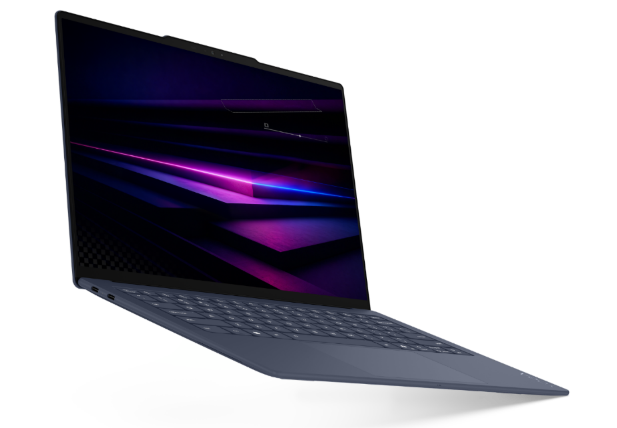
If you work from hotel rooms with a second screen, the Lenovo Yoga Slim 7i Ultra Aura Edition (14-inch, Gen 11) is my pick for a Windows travel laptop. It starts at 975 g and has three Thunderbolt 4 ports, two on the left and one on the right. Plug the charger into the side nearest the outlet and the display into the side where it sits. A third port stays free for a drive or conference headset. That flexibility matters on a narrow desk where a stiff cable can push a lightweight screen out of position. Lenovo’s Gen 11 datasheet shows the port layout and starting weight.
Two alternatives make better sense for particular trips. The 13-inch MacBook Air with M5 has separate MagSafe charging if your work runs on macOS. The ASUS Zenbook A14 has full-size HDMI and USB-A if you present at offices with older equipment. Here is what changes when you actually connect each one to a screen.
What stays free when the display and charger are connected?
| Laptop | Hotel desk setup | Reason to choose it |
|---|---|---|
| Lenovo Yoga Slim 7i Ultra Aura Edition, Gen 11 | Charger in one Thunderbolt 4 port, USB-C monitor in another. One Thunderbolt port remains. | You use Windows and carry your own USB-C display. For HDMI rooms, pack a USB-C-to-HDMI adapter. |
| Apple MacBook Air 13-inch, M5 | Use MagSafe 3 for power and one Thunderbolt 4 port for the monitor. One Thunderbolt port remains. | You already use Mac apps and want an available port for storage. Pack the MagSafe cable for this arrangement. |
| ASUS Zenbook A14, UX3407 series | Charge through one USB-C port. Use the other for a USB-C monitor or use HDMI for a room display. USB-A remains available. | You alternate between your own screen, a client’s projector and a USB-A presentation remote. |
Apple confirms the M5 Air can run its built-in display alongside external screens. ASUS lists two USB4 ports with display and charging capability as well as HDMI on the A14. Its Snapdragon configurations run Windows on Arm, so clear any required VPN or specialist peripheral driver with your IT team before ordering. Check the exact configuration against the MacBook Air specifications, the Zenbook A14 specifications and Microsoft’s Arm driver guidance.
A two-night trip with one wall outlet
Suppose you have two evenings to reconcile invoices against a spreadsheet. A 14-inch travel display earns its place here. Put the PDF invoices on the upright screen beside the laptop and keep the spreadsheet directly in front of the keyboard. Across an evening of checking totals and account numbers, you can leave the invoice open at a readable size and still see which spreadsheet row you are editing.
Consider the Yoga paired with a ThinkVision M14d. Lenovo lists the monitor at 0.6 kg unpacked. With a starting-weight Yoga, the two devices come to about 1.58 kg before the charger, sleeves and cables. The monitor alone is the biggest extra item in this setup. For a trip that involves an hour of email after dinner, I would leave it home. For two evenings of side-by-side documents, I would pack it ahead of a separate keyboard or dock.
Start with the straightforward wiring. Plug a compatible 65 W USB-C PD charger directly into the Yoga, then connect the M14d to another laptop port with the monitor’s supplied USB-C cable. Video travels from the notebook to the panel. The notebook also supplies power to the panel. Lenovo specifies 5 V at up to 3 A on the Yoga’s USB-C output, and the monitor datasheet lists typical use at 6 W and maximum consumption at 7.5 W. Those figures explain why the monitor can draw from the notebook in this setup. They do not predict battery life during a call. See the Yoga user guide and the ThinkVision M14d datasheet.
When it makes sense to charge through the monitor
If the outlet is behind the travel monitor, connect the charger to one of the M14d’s USB-C ports and the Yoga to the other. In this arrangement video still goes from laptop to monitor, while charging power comes back along that same cable to the laptop. You can lift the Yoga off the desk for a meeting by unplugging a single cable. The charger stays with the display.
There are two different power ratings to check. The figure on a charger describes its output. A monitor’s pass-through rating describes how much it can supply to the computer under supported conditions. The M14d specifies up to 65 W of pass-through. A 65 W charger connected to that monitor does not guarantee 65 W at the laptop, because the panel needs power too. Lenovo lists 45 W at 20 V as the minimum supported USB-C input for charging the Yoga and 65 W as the upper end. A phone charger marked 45 W may offer a different voltage profile. Check the charger’s output label.
Try the exact setup at home with the laptop partly discharged. Open the work you expect to do, connect the screen and start a normal video call. Check the charging indicator and check the battery level again after the call. If it drops while plugged in, connect the charger directly to the laptop and feed the display from the second port. On a multiport charger, repeat the check with your phone connected if you intend to charge both overnight.
Sources & references
- [1] Lenovo’s Gen 11 datasheetpsrefstuff.lenovo.com
- [2] MacBook Air specificationssupport.apple.com
- [3] Zenbook A14 specificationswww.asus.com
- [4] Microsoft’s Arm driver guidancesupport.microsoft.com
- [5] Yoga user guidedownload.lenovo.com
- [6] ThinkVision M14d datasheetpsref.lenovo.com
- [7] Microsoft explains the per-display layout and scaling controlssupport.microsoft.com